 Headmates
Getting started
Headmates is a home for your whole system on one phone. There is no account to create: everything you put in stays on the phone, and nothing leaves it unless you turn something on.
What you share with friends travels through Headmates' relay: a server that passes messages between phones. Everything is encrypted on your phone first, so the relay can't read it, and it deletes each message once the phone it's for has collected it.
Headmates for Android™ is out now in Early Access on Google Play. The iPhone version is coming soon; where this guide says "on iPhone", it describes how that version will work.
Age check
The app checks whether you're old enough to use it. It uses an age range from Google Play when Play shares one; otherwise it asks for your birthday, once. Your birthday, calculated age and any Play age range aren't stored or sent anywhere by Headmates. Only the eligibility outcome stays on this phone.
With Google Play, the app checks again whenever it opens online. If Google requires verification or a parent's approval, the app explains what to do before continuing. Offline, it keeps the last outcome; without an earlier check, it asks for your birthday.
Terms and privacy
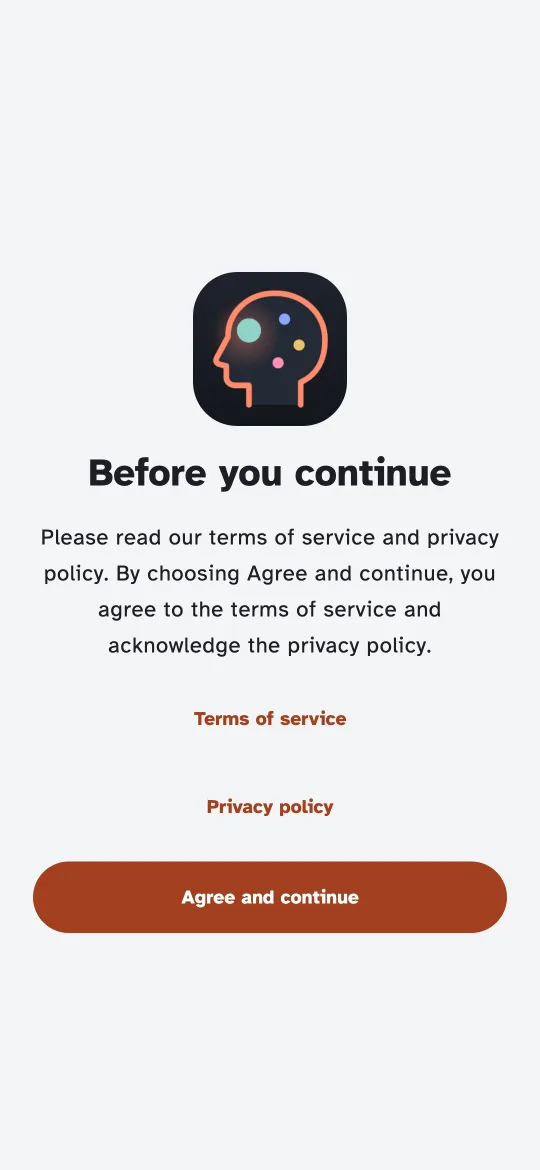
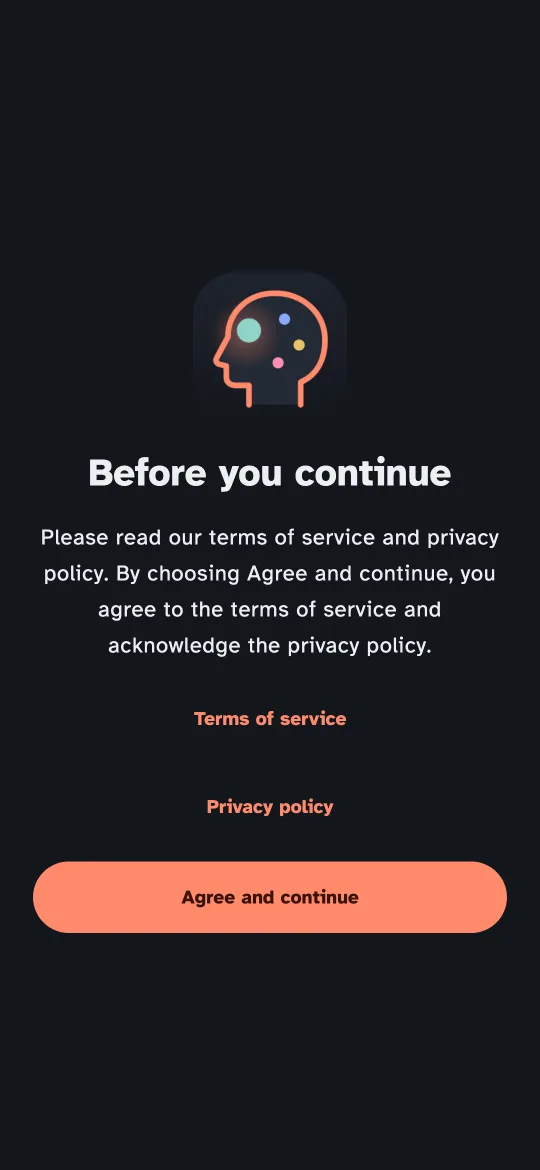
After the eligibility check, read the terms of service and privacy policy, then choose Agree and continue. Existing users are also asked when updating to new terms. Both links stay available in More → About Headmates.
Naming your system
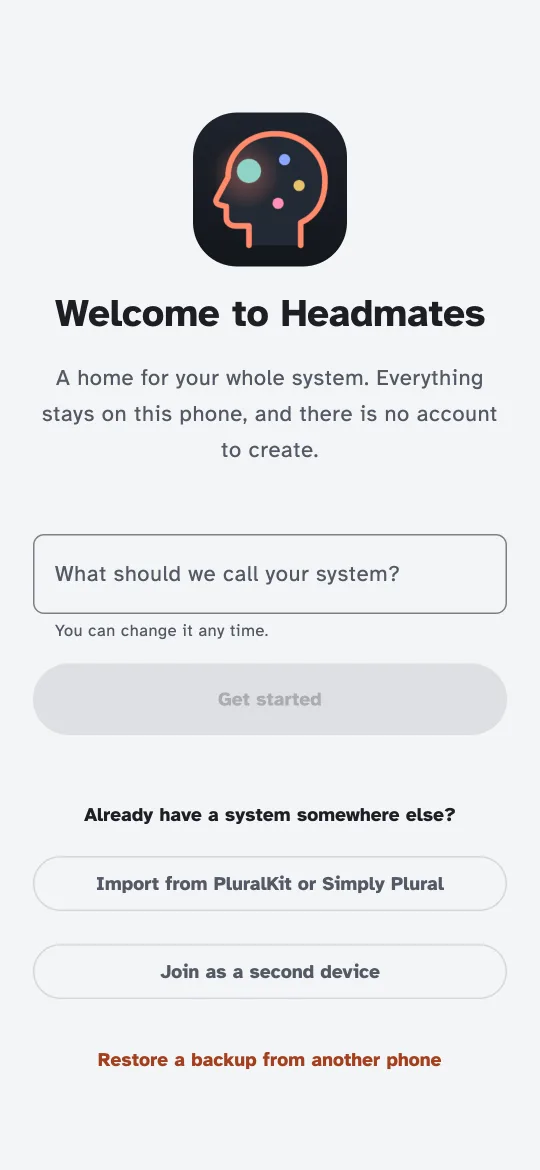
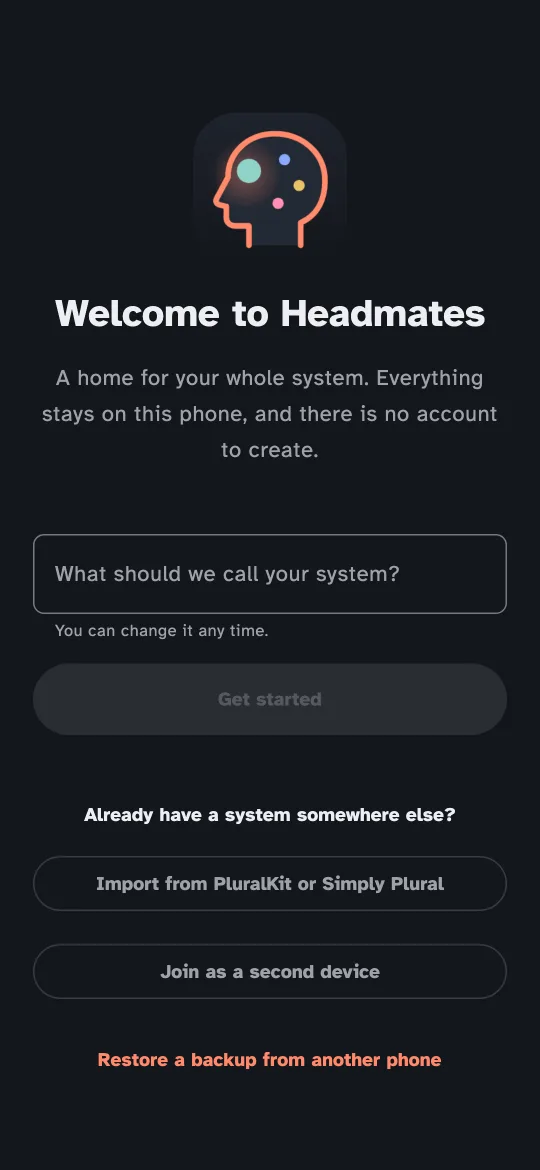
The app then asks what to call your system. You can change the name, a description, a colour and a picture later in More → System profile; friends see the name, colour and picture.
Three questions about backups
Next, the app asks three questions about backups and moving to a new phone (two on iPhone). Each is your own choice, and Later leaves it off for now. All set becomes available once each question has an answer. The choices are explained in Backups and moving phones.
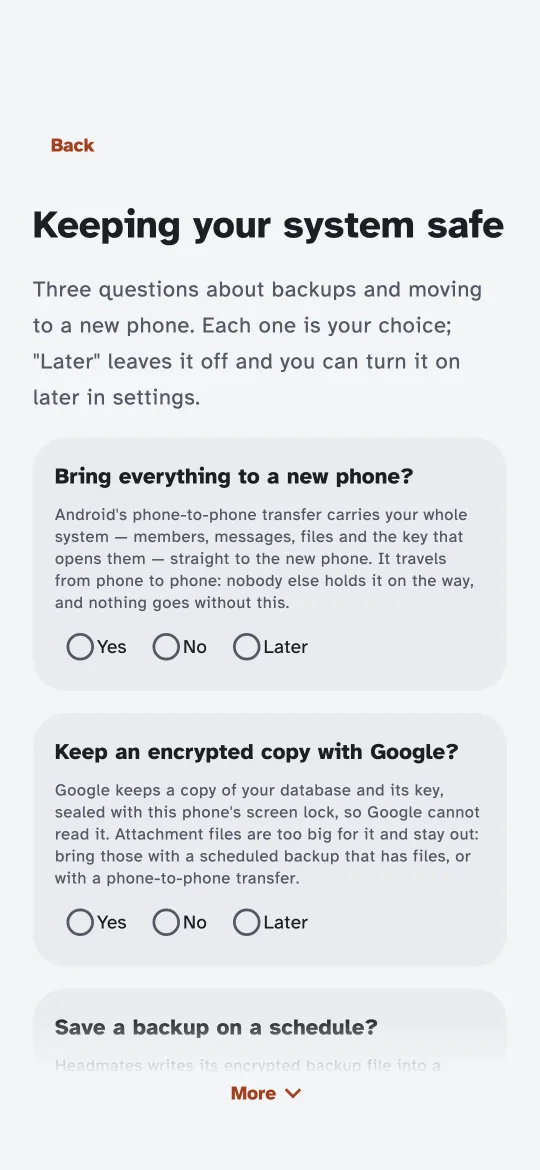
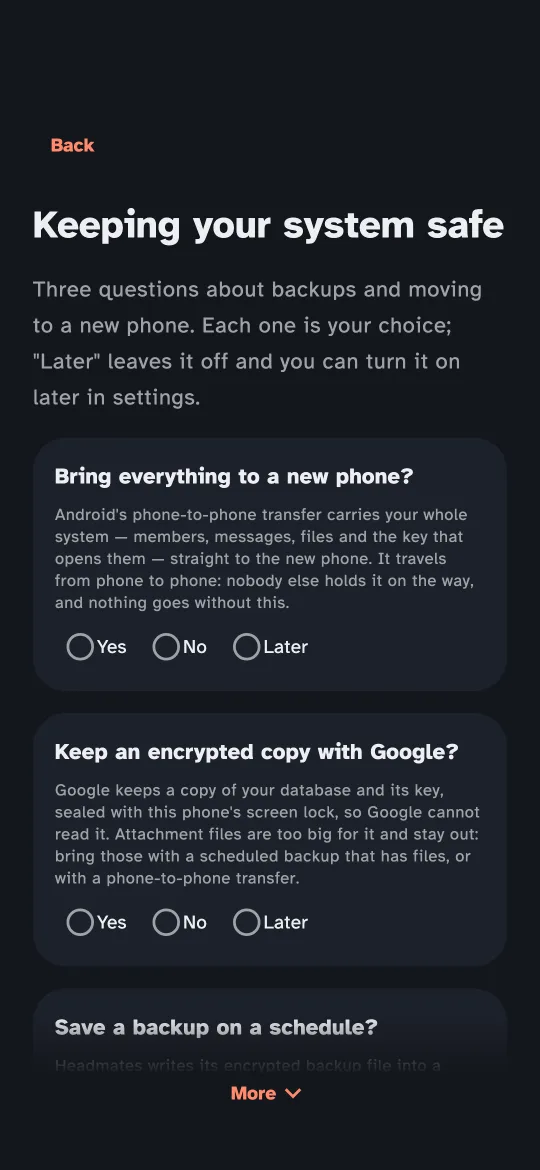
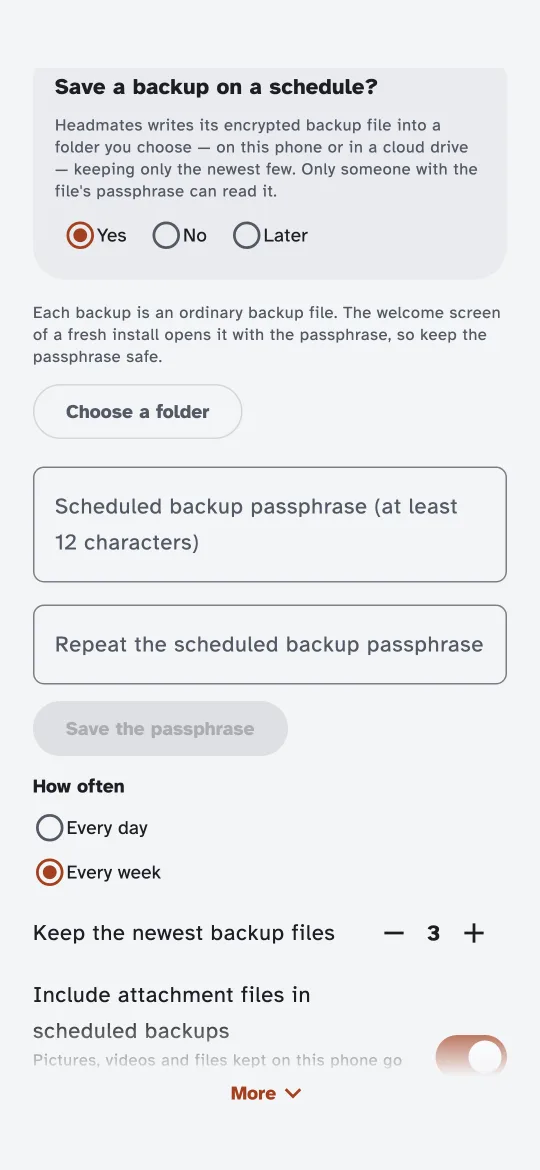
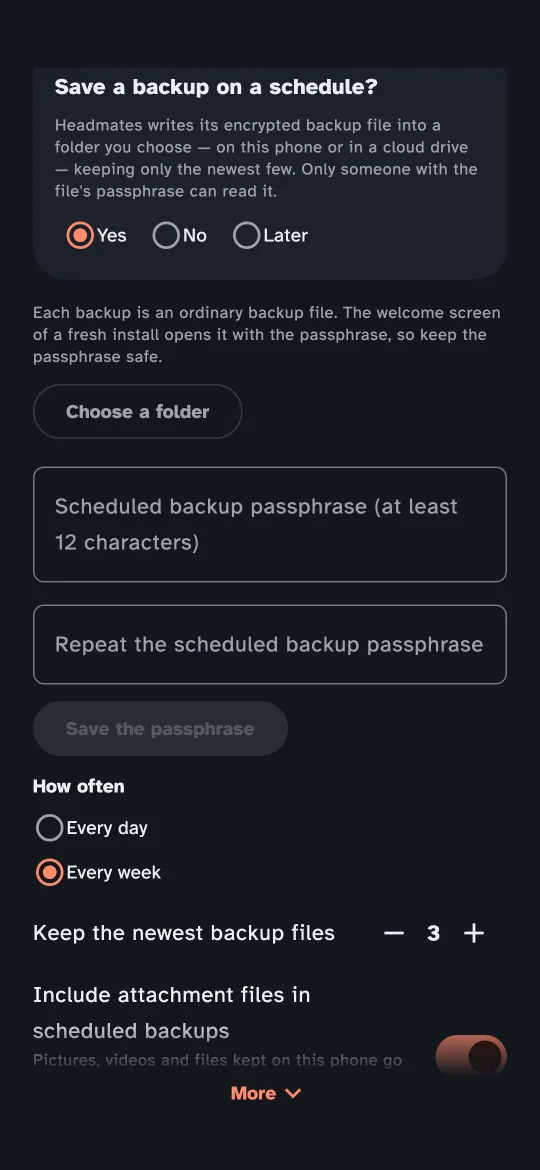
Saying yes to scheduled backups asks for a folder and a passphrase before you move on. Keep the passphrase safe: without it, nobody can open the backup, including you.
Already have a system somewhere else?
The welcome screen offers three other ways in.
Importing from PluralKit or Simply Plural
Choose the export file you downloaded from PluralKit or Simply Plural. The file is read on the phone; nothing is uploaded. Before anything changes, the app shows what it found: members, custom fronts, groups, custom fields and front history.
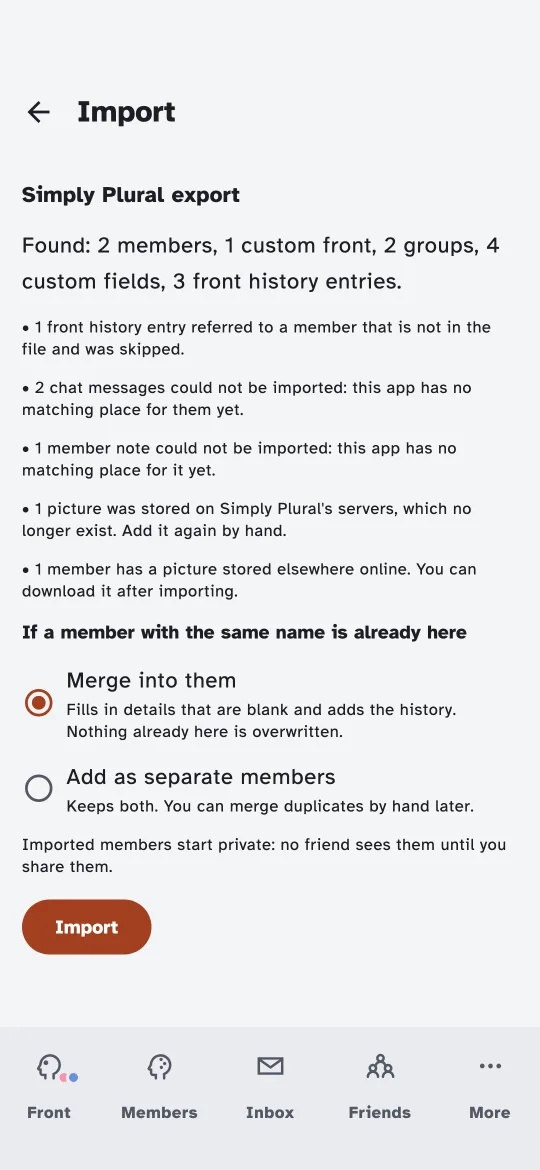
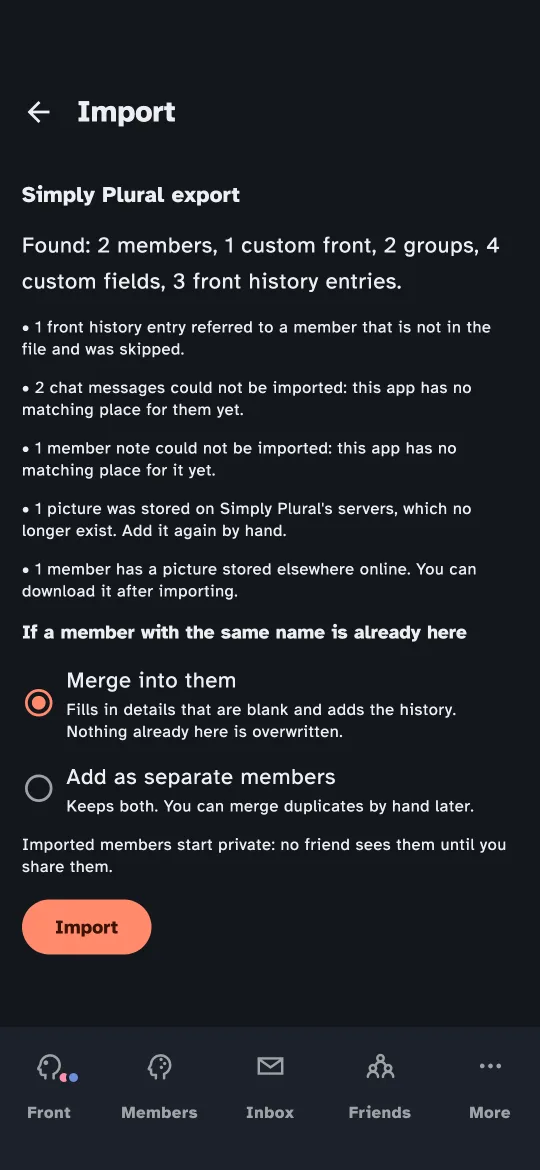
If a member with the same name is already here, you choose whether to Merge into them (only filling in what is blank, never overwriting) or Add as separate members. Imported members start private: no friend sees them until you share them.
Pictures that were stored on Simply Plural's servers can't come across, because those servers no longer exist. Pictures stored elsewhere online can be downloaded after the import: the app says first which websites it will contact, since that shows them your IP address, and pictures that aren't on a secure (https) address are skipped. Done skips the pictures.
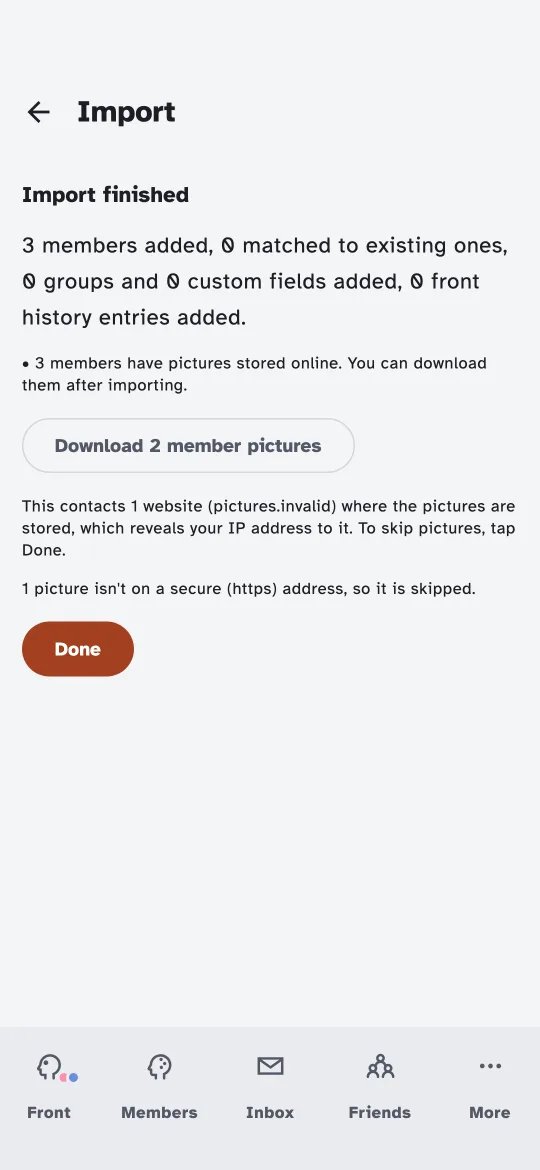
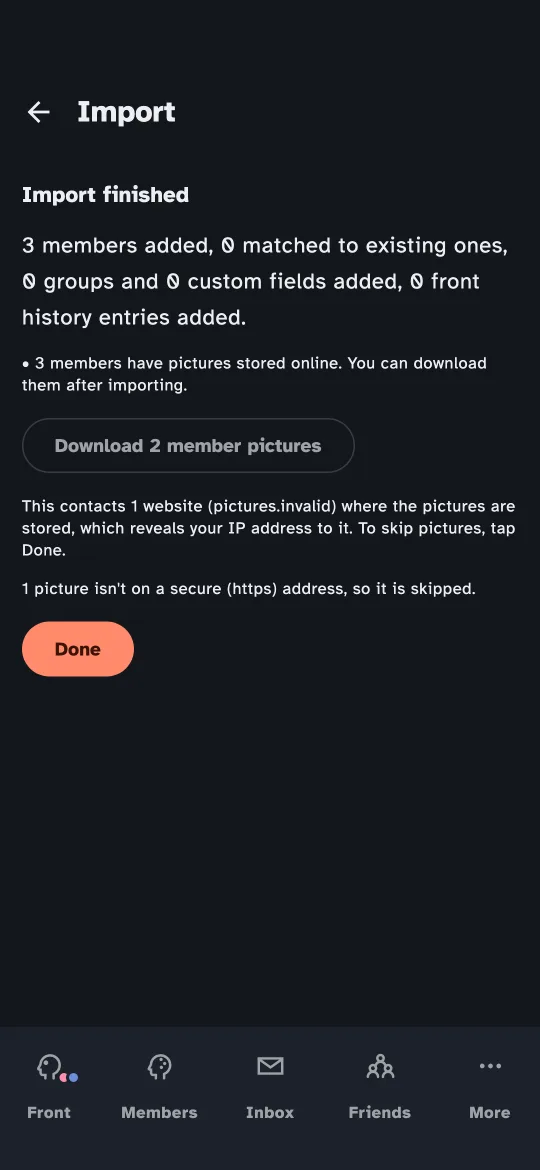
The same import is in More → Import from PluralKit or Simply Plural later on.
Restoring a backup
Restore a backup from another phone opens a backup file you saved earlier. After you enter its passphrase, the app shows what the backup holds before anything is replaced: the system's name, its members and friends, its group chats and any attachment files.
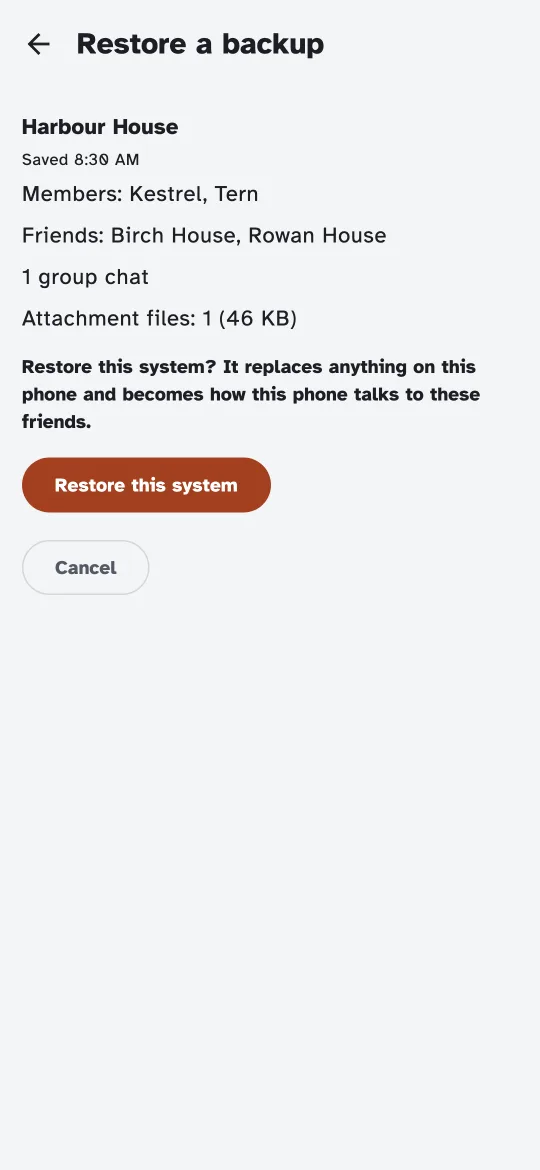
See Backups and moving phones for what happens on the first start after a restore.
Joining as a second device
Join as a second device brings your system onto this phone from the phone it is already on. See A second device.